
Hello world my name is Francisco, fcoterroba on the Internet and today I’m bringing you an explanatory post to create an FTP server in Windows.
Hello? What is FTP?
FTP (File Transfer Protocol), file transfer protocol, in Spanish. It’s a network protocol for file transfer between systems connected to a TCP network, based on client-server architecture (the most basic and common of network architectures).
Roughly, and with more common words, FTP is a protocol through which, broadly speaking, you can set up your own private file cloud. Yes, being direct, with this guide you can create your own Google Drive, Dropbox or iCloud.
Before starting, I warn that this guide, like the previous one, about how to create a web server in Windows, are focused on a home network infrastructure. You’ll be able to access your own server as long as you’re within the same network connection.
If you want to learn how to open it to the public or access from anywhere on earth, just having an internet connection, let me know in the comments!
When are we going to start? 😴
The last thing before starting is that, although it’s not essential, I recommend you visit the previous post, since many things we’re also going to talk about here will be more familiar to you.
Now yes, we begin. You should know that in Windows there are two options to perform this type of servers.
One comes integrated in the same operating system, uses proprietary server (Microsoft-IIS) and another from third parties.
There are many programs that configure an FTP server but one of the most famous and used within the proposed scope, is undoubtedly, FileZilla Server. We’ll talk about this in detail later, now let’s go with Microsoft’s option.
SET UP FTP SERVER WITH MICROSOFT-IIS
Microsoft-IIS is a set of services part of the Windows operating system.
Microsoft-IIS is not downloaded, but rather, let’s say it’s like an “extension” of the Windows operating system. It comes downloaded but not installed, since it’s not something that’s used frequently.
To activate this feature, we must type “features” in the search bar and a square window will appear with the features we have activated in Windows.
The feature we must initialize to have an FTP server in Windows is mainly “Internet Information Services > FTP Server”.
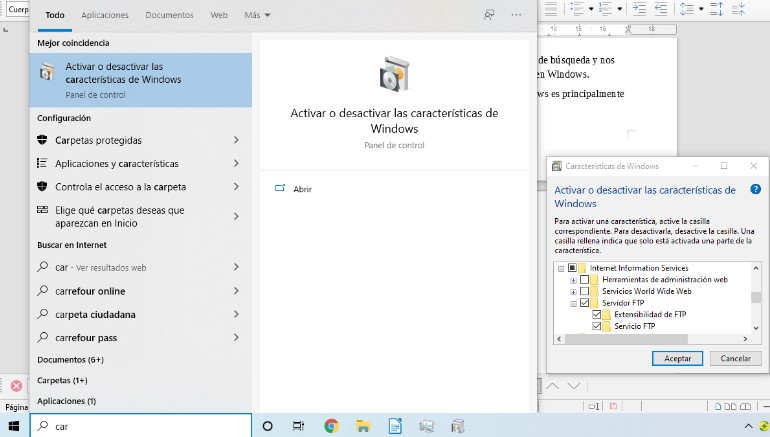
Once confirmed, we click the accept button and it will take a few minutes to finish activating. (It may also ask to restart the computer).
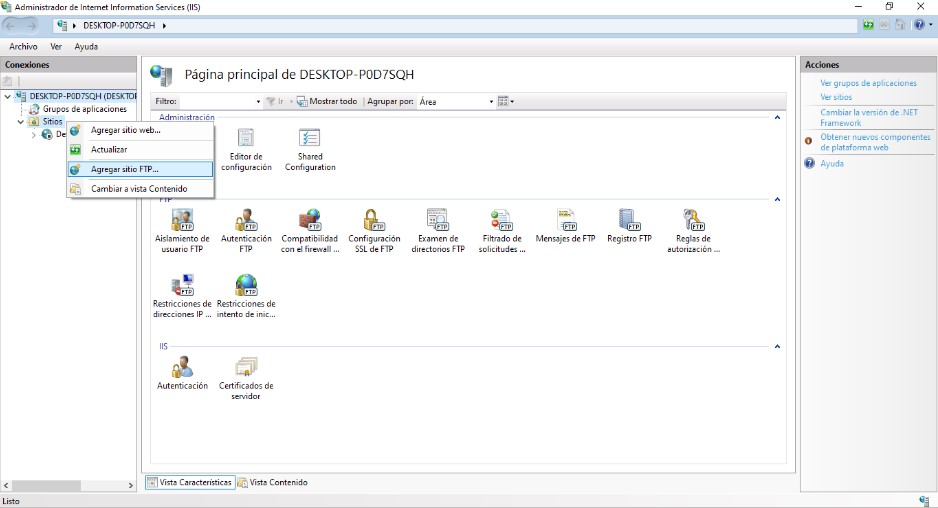
Next, we’re going to open the “Internet Information Services (IIS) Manager”. Then, we right-click on “Sites” and then go to “add FTP site”
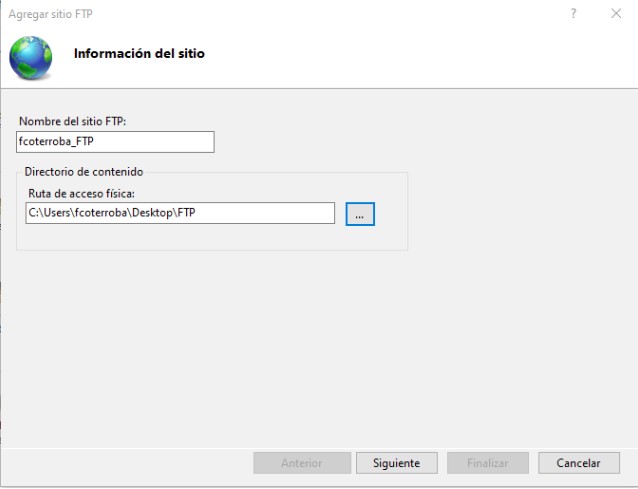
We type the site name (merely identifying) and set the folder we’re going to share on the server. In my case, for this test, I’ve created a folder on the desktop called FTP.
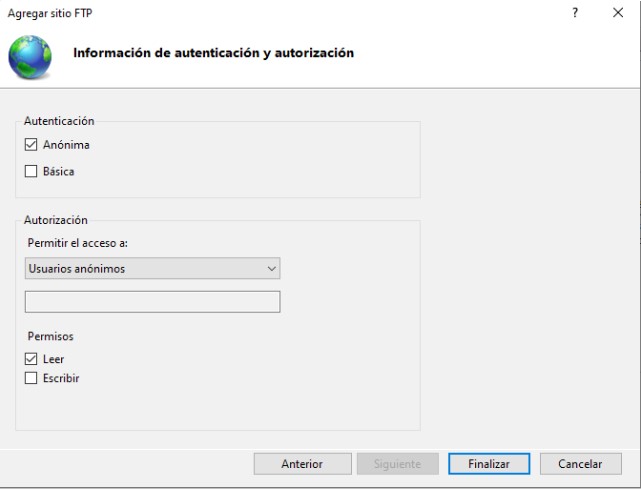
We then set the server’s IP address and finally configure the connection type (anonymous so everyone can connect, basic and the authorization of users who can connect, as well as the type of permission they have within it).
For this test I’ve decided to allow the connection indiscriminately but only for reading. Everyone will be able to read the content and download it but no one other than me will be able to update that content.
By simply doing this, we already have our FTP server ready and working. We can check this by typing “ftp://localhost” in the browser.
SET UP FTP SERVER WITH THIRD-PARTY SOFTWARE
If you ask me, personally I can say that I don’t like, but nothing, Microsoft’s administration service. I can come to understand it and even like it, within a server environment, using its Windows Server 2XXX operating system. But little more.
That’s why, really, when someone asks me what to do to share certain files in a local environment, I don’t even mention the previous way. I tell them to install some third-party software and fly.
That’s why, just as I would with my close ones, I want to do it with you. And I’m going to explain to you, in a very detailed way, how to install and configure a local FTP server using third-party software. The best way to do it using a user Windows.
As I said previously, there’s a lot of software available to perform an FTP server on whatever your operating system is. That said, one of the oldest and that today still works almost like the best, is FileZilla Server.
FileZilla Server, although people usually get confused, has no relationship with the Mozilla Foundation. Non-profit foundation that maintains products like Firefox, Thunderbird among many others.
FileZilla, according to its documentation, started as a computer science student project almost 20 years ago. Today, its client or server versions are still the most used in this protocol.
Stories aside, let’s get to what we’re going to do. We download the installer from the official page.
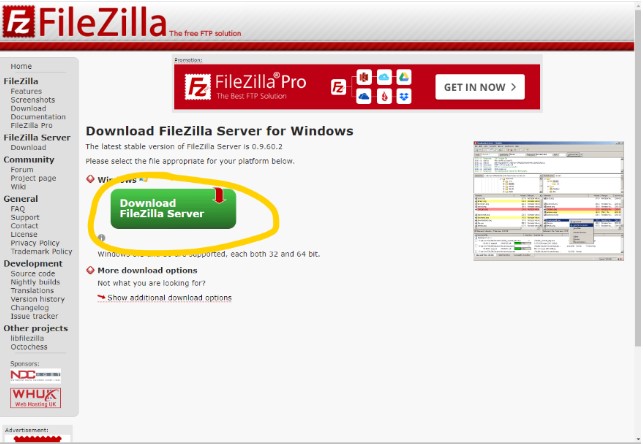
When the executable is downloaded, we’re going to install it as if it were our favorite program. Right now there’s no configuration.

Once the program is installed, it will ask us for host, port and password (although the first two are usually already written)
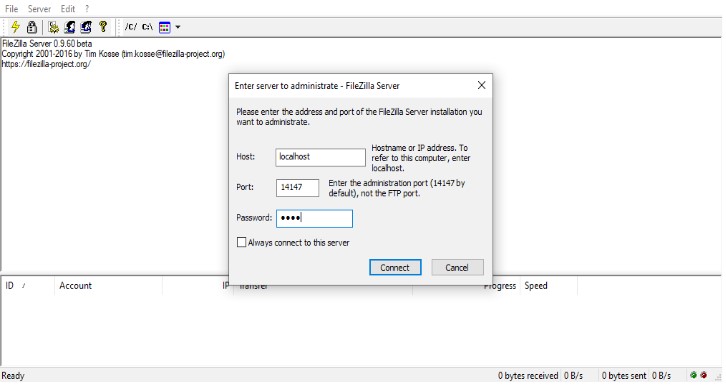
Next we’re going to configure users, shared folders, etc.
The password is set in “General” and then we set users and usage folders.
For this, we have to start by creating users to then select the folder that is shared for that user as well as their permissions.
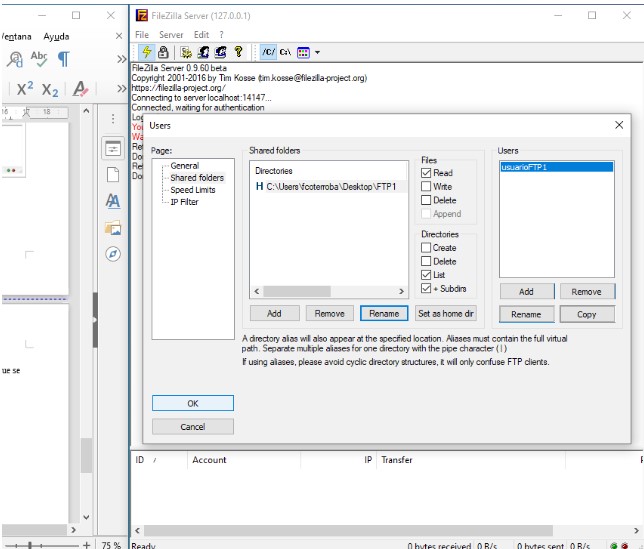
Once we click okay, we can check that the user can enter correctly.
HOW DO YOU ACCESS AN FTP SERVER?
There are several ways to enter an FTP server using Windows but, the three main ones are:
- File Explorer → That’s right. Windows file explorer allows connecting to ftp servers by typing ftp://ip_or_server_name
- Google Chrome → In the same way as before, the king browser allows FTP protocol connections, typing it the same ftp://ip_or_server_name
- FTP Clients → A client is a program that serves to connect to a protocol. Specifically, the most used is the client of the server program we’ve used. FileZilla. This type of programs allow a more advanced connection (change protocol, save session, etc.)
With nothing more to add, I hope you liked the post, you can leave me in the comments the doubts you have as well as talk to me through the contact section for a private chat. I’ll respond with great pleasure 😊
Little more guys, remember to follow me on Twitter, Facebook, Instagram and LinkedIn. See you next time!